Every solar day when we open up social media at work, nosotros are bombarded with live video from Facebook, live streaming webinars, and streaming on YouTube.
How are we supposed to process it all in real time, especially when it might disappear the second we scroll with no way to observe information technology again?
More importantly, how can you record streaming video then information technology's not all lost in the internet's void?
Don't let the internet run your schedule.
You can hands capture or record live streaming video and share it with your friends or coworkers, or save it for later viewing. It'south easy, information technology's fast, and it will bring order to a chaotic media landscape.
Here's how to get started:
Stride i: Find a desktop capture tool
Start, find a great screen recorder and screen capture tool.
There are many tools that volition allow yous record your desktop screen. I employ TechSmith Snagit, which is great to easily make screen recordings. You can fifty-fifty cut out the parts you don't need. Or, if I need a tool with more editing abilities, I'll use TechSmith Camtasia.
Step 2: Conform your recording settings
Once you've downloaded Snagit, open up it and familiarize yourself with the unlike settings.
Cheque your settings to be sure you're ready to tape video rather than capture an epitome.
Later selecting the expanse of the screen y'all desire to record, the screen recorder toolbar appears under the selected surface area. You can select to tape microphone sound or system audio with a video recording.
If you desire to tape streaming video, you'll probably want to capture the audio too. Make sure system audio is selected.
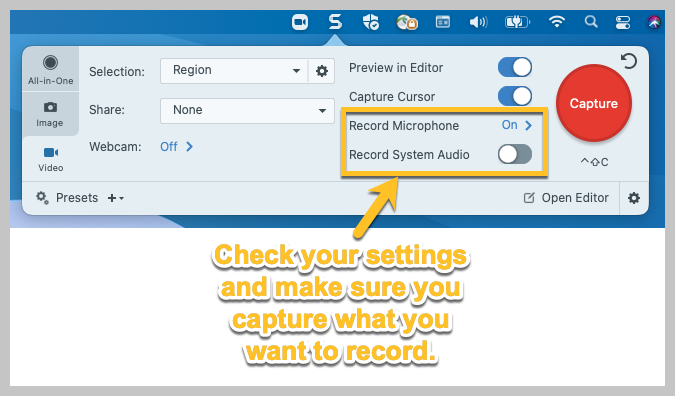
System audio is any audio from your reckoner, such equally application alerts, audio playing from your speakers, etc.
Pace 3: Select an area to record
Click the Capture push button and so select your entire screen, a item window, or a custom region.
Here is an example of a NASA live stream that I recorded before:
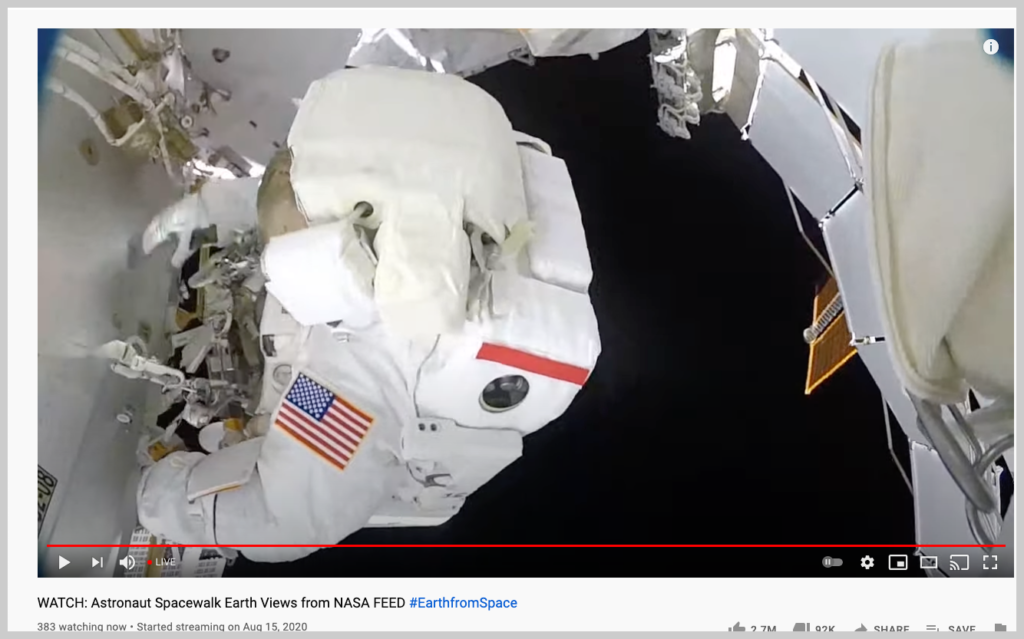
Instead of selecting the entire browser window, I simply captured the streaming video section.
Step iv: Hit record
Later you make your selection, click the record button to start.
While recording, pause and resume at whatsoever fourth dimension, switch betwixt the webcam and screen recording with the webcam button, and even change sound settings.
When you lot're done recording, click the stop button to stop the recording.
A give-and-take of circumspection: If you program to record a longer video stream, exist enlightened that if your estimator goes to sleep or if a screensaver starts running, your video recording may be interrupted. So, if you programme to start recording and walk away from your device, yous may want to turn off screensavers and sleep style.
Step 5: Relieve and upload
Once you lot have your video, you can save it to your figurer as an MP4 or upload to share as needed. Snagit and Camtasia both have congenital-in consign features to popular platforms, such every bit YouTube, Slack, Screencast.com, and more than.
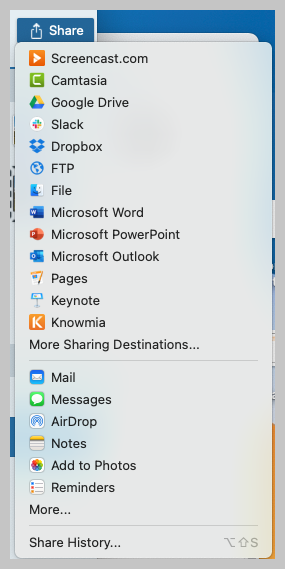
Snagit fifty-fifty lets y'all brand a GIF out of your video! Recollect, though, that a GIF won't incorporate any sound.
Video capture can help yous make a little sense of the anarchy y'all may feel, peculiarly if yous're working remotely. One of my favorite uses is recording a Zoom meeting, and there are an endless amount of other great uses for video capture, too.
Brand sure you have permission to record and share content. For case, if you pay to attend a webinar but so record and share it with your coworkers, that could lead to trouble for you and your organization.
For a great video walkthrough of the process outlined in this post, bank check out the link below:
Frequently asked questions
Tin can I tape a livestream'south video and sound at the aforementioned time?
With Snagit and Camtasia, you tin can! Merely toggle the aspects yous'd like to record, similar your screen system or system audio.
Tin I tape a livestream on my phone?
Aye, you can! To capture a livestream on your phone, download TechSmith Capture. Then, in one case you're done recording, y'all tin easily upload the video to Snagit or Camtasia for editing.
DOWNLOAD HERE
Posted by: kleinsemphe1939.blogspot.com